Sat 27 Aug 2005
While I received my X41 Tablet (model 18666SU) a couple of weeks ago now, I’ve only had a couple of days to play with it. I’m currently filling the system with my primary programs, and things have been mostly enjoyable. I thought that now would be a good time to share my out of box experience with you all, along with some kinks that I’ve run into.
I’m also going to try out a new way to write my posts - the ‘Geek Note’, which will simply be a link in brackets like this: [GN1]. This will be an attempt to keep my articles more readable, while still providing my more technically inclined readers with the information they desire. So let me know what you all think about this, I hope it works.
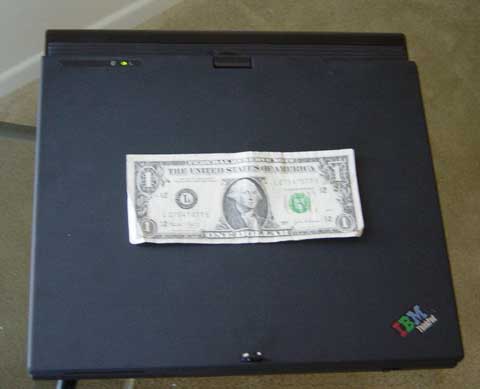
First thing I was glad to notice as I pulled it out of the box was that it is pretty small. I carry my computer with me everyday, so any weight that I can shave off my bag is a welcome relief. This laptop will hopefully allow me to get rid of my Wacom Intuos graphics tablet, memory card reader, and paper notebook - so even with the extra extended battery I have, I’m guessing that I’ve shaved over a pound off my travel weight - I’m very excited.
On a whim, I just threw the battery in, opened the very sturdy lid, and hit power - it responded and started booting up. It’s nice of Lenovo to package a charged battery, makes things much smoother out of the box. [GN2]
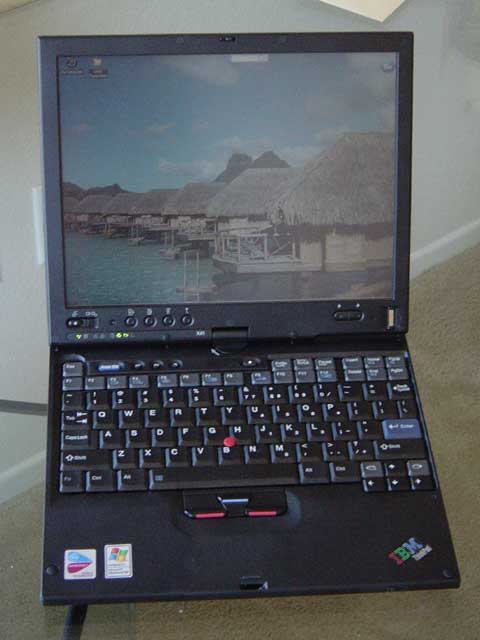
I’ve never used an IBM laptop before, but I’ve always heard about their wonderful keyboards - I now understand why they get so much praise. It is completely solid, with no ‘give’ or ‘bouncing’, and has a pretty satisfying clicking noise that isn’t too loud, but exudes quality and durability. This is one ultra-portable keyboard that no one will complain about unless they use the Windows key a lot - which is strangely missing. In it’s place is the tablet’s function key that is used to directly activate things like brightness control and sleep state.
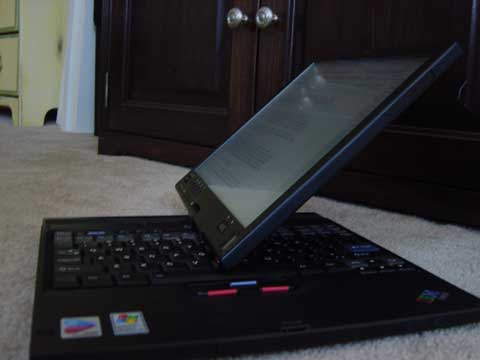
Then, after about 20 minutes of configuring windows, I was into my first session with the tablet. My first impression of the screen is: WOW! It has 8 brightness levels from VERY dim to VERY bright, has an exceptional viewing angle in both landscape and portrait modes (which was now activated). [GN3]
I highly recommend that you run Windows Update on this system as soon as you get it. (Dial-up users: be ready for a couple of hours of downloading - there’s a lot to fix, and it’s worth the wait for the protection you get.) My system ran into no problems during it’s updating. [GN4] Also be sure to run Microsoft Office’s update utility (Any Office program:Help Menu -> Check for Updates).
As I started fiddling around with the system, I realized that I was liking the track stick. The system does not come with a track pad, which I have mostly been accustomed to and never really liked track sticks, but this one is the best I’ve used. I had always found track sticks have a tendency to ‘drift’ after I want them to stay, but this one seems to correct itself quickly if it begins to drift a little - which is very nice. So the only thing I missed initially was the ability to tap to click that my last laptop had. After a few days now, I don’t miss that part either. (Edit: Reader Brandon has told me that it does in fact have ‘press-to-select’, and I found the setting hidden in the Mouse Control Panel. Imagine that, a setting for the mouse hidden in the mouse control panel.
)
Bundled Programs
First up: Zinio. It is a program intended to replace paper magazines. Automatic digital delivery of my magazines without the weight is pretty enticing to me, so I thought I’d fire it up. After a software update, Zinio is pretty nice, and I’m going to try out a couple of months with their subscription. A full review of this software will be up after I can get some testing done. Coupled with this tablet, it’s a very usable alternative to paper magazines at hugely reduced prices. I subscribed to a year of Popular Mechanics for $4.99 - not a bad deal considering the cover price is $3.99. (There was one issue I found with this program, and two others:[GN5]
I took a look at the Microsoft Tablet Experience Pack which was already installed. This pack includes a Crosswords program, Web Clipping tool, Ink Art, and Ink Desktop. The Crosswords program is great! I haven’t purchased additional puzzles for it yet (which is an option) because I’m not very good at crossword puzzles and have only finished one, but it really is fun to use. It has normal and expert modes, the difference seems to be that the normal mode tells you if you’ve entered an incorrect letter, where the expert mode gives you as much help as a newspaper would - none.
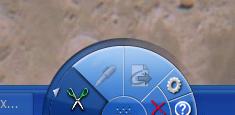
The web clipping tool is very nice, it gives you the ability to circle interesting parts of your screen, annotate them, then copy that image to your clipboard to email, or do any number of things with. This program is more functional then the OneNote counterpart in that you use the stylus to circle what you want to clip, then gives you the ability to write a note on top of it, then export it to a file, clipboard, email or ‘editor window’. Very nice alternative to traditional screen captures, which often require additional work before sending to it’s destination.
Ink Art is a pretty nice sketchbook like program, that has all sorts of different artistic tools to draw with. I don’t have any experience with the programs it competes with, but it should provide satisfactory capabilities for everyone but true digital artists.
Ink Desktop was not my favorite add-on at first. It slows down the process of switching between laptop and tablet mode by a few seconds, and isn’t compatible with WallpaperGyro, a great program for switching the wallpaper automatically when you change from laptop to tablet mode. But as I gave it a try, it’s more convenient then the Sticky Notes program that also ships with the tablet. Just write right on your desktop in a variety of colors, and erase as you don’t need them. You can also export the image to a file and email it. It is definitly a crowd pleaser - a coworker witnessed my handwriting on the desktop and was in awe, “That’s the coolest thing ever!”. Well, I don’t know about ‘ever’, but it is both cool and useful.
Battery Life & General Thoughts

At this point, I had been working for 3 hours off the battery and thought it was time to check out the power settings. By default, a battery meter is displayed in the taskbar. Clicking it allows you to change power profiles on the fly, and it’s configuration program is pretty complete - giving you control over everything from how the processor is powered, to fan usage, to display brightness; with separate settings for plugged in versus battery usage. One issue I noticed was that if you turn off the battery meter display in the task bar, the tablet does not seem to automatically detect if it is plugged in or on battery power. This is frustrating because it takes up a fairly large portion of the display area, especially when in tablet mode, and doesn’t leave much room for processes to be displayed. Other then that small frustration, I’m pretty happy with the power settings, and have been getting between just under 4 hours and just over 6 hours of battery life (using the 8 cell battery) depending on usage.
The only real issue I’ve found with the IBM/Lenovo X41 tablet has been it’s wireless internet setup. By default, Windows’ wireless manager is enabled, and IBM’s Access Connect is running, resulting in a fight for your WiFi card. It took me 3 days to figure out why my tablet kept dropping connections, but after I disabled Windows’ control, things smoothed out considerably. (If you’re having connection issues see: [GN6]) IBM’s Access Connect is a full-featured program. Not only can you setup profiles for different locations’ wifi points, but it automatically detects which location you are at depending on what SSID it connects to, and sets up security levels, IE preferences, file sharing, default printers, firewall settings, wireless power settings, and proxy settings. Once working, it’s VERY NICE.

Lastly, the fingerprint reader was calling my name, so I activated the famed IBM security sub-system. After enrolling a number of fingers successfully, I activated fingerprint authentication for windows login. Once you get the hang of the motion, it is much faster than typing in my high-security password. There is a context menu available when browsing folders to encrypt files on the folder and file level - which uses 256bit AES encryption which was recently approved for TOP SECRET level communications by the NSA - so you can rest assured that files you encrypt will not be unlocked without a password (or TRANSLTR, for you Dan Brown fans).
Overall, things have been extremely smooth these past two weeks. I’m getting my main programs up and running without issue, and a few kinks aside, the user experience has been phenomenal. [GN7] I’m going to get more in depth into some of the other features and programs as I become more comfortable with them. All-in-all, I have to HIGHLY recommend this system to anyone that is looking for an ultra-portable laptop. Even if you’re not sure about the Tablet PC thing, it’s premium over the normal X41 is only about $100, and half a pound on the weight, but it’s built like a rock. Every part of the device is of very high quality and there is no rattling at all. I can’t wait to explore a little deeper into this tablet, it’s already exceeding my highest expectations.


August 27th, 2005 at 7:09 pm |
Wow! Articulate, smart, and interesting. Are you cute too?
August 27th, 2005 at 9:45 pm |
Crashless Aspirations And The X41 Tablet PC OOBE
Vince Anido of Crashless Aspirations is back from his honeymoon and in addition to the getting to known you with his new bride, he’s also getting to know his new Lenovo X41Thinkpad Tablet PC. He’s got a great post on
August 28th, 2005 at 2:46 am |
[…] enubar=no,status=yes,left=0,top=0′);return false”>Vince Anido has a user review of the IBM X41 Tablet and writes - ‘Overall, things have been ext […]
August 28th, 2005 at 2:53 am |
[…] r computer while it’s in tablet mode.’ Vince Anido has a user review of the IBM X41 Tablet and writes - ‘Overall, things have been ext […]
August 28th, 2005 at 7:36 am |
great review…the geek notes really help…good way to keep it organized.
especially like the detail about the old software images that lenovo is using, and the wireless card issues.
Do you find the system responsive enough in everday use? I’m concerned about the slow hard drive and ram limitations.
also, had not heard of the ram/hibernation issues above 1.5gb…any links you can point to on that?
thanks for a great review.
August 28th, 2005 at 9:27 am |
Very nice write up of the X41T. Your “Geek Notes” idea is going to get ripped off by a lot of people … probably starting with me.
August 28th, 2005 at 9:31 am |
I’m glad you guys like the Geek Notes. I had my wife read the first draft, and after 5 minutes her eyes glazed over, so I felt I had to do something.
I definitly think the system is responsive enough for every day use, considering your every day routine doesn’t involve huge programs. You are right to be cautious about the slow hard drive, boot up is not the quickest, but I always have my system hibernate when I close the lid and it usually gets back from that state after about 20 seconds. For my purposes that’s more then adequate. I haven’t experimented too much with Standby modes, but I used it a couple of times, and it only takes about 3 seconds to come back up. I’m sure the battery gets drained considerably more in this state though. I’ll see if I can run a test to see how much.
Back to the point: speed. The processor it’s self is pretty nice and I DO use it as my primary computer. I haven’t found a situation where I’ve been waiting for an annoying length of time yet, which includes some photoshop work. So I feel confident in saying that it should be fine for most users. Those that need more power should probably look at the Toshiba Tecra M4 and Eric Mack’s blog. From his experiences, I’d say that it may be better suited to those that need the extra power and don’t mind carrying the extra weight (nearly twice that of the X41).
Well, now that you’ve forced me to re-investigate the issue,
I found This MS article that details a hotfix. I’ll amend the article to point to that. So it seems the hibernation issue isn’t a factor anymore.
August 28th, 2005 at 9:41 am |
Rob: Feel free! A lot of times I feel these types of things go over most users’ heads, and while it’s great for some people (most people right now), I feel that in order for blogs like this to gain wider acceptance we’re going to have to write with people like my wife in mind. And of course, we wouldn’t want to alienate our core readers, so I came up with this compromise. I’m getting about 2:1 hits on the main article:Geek Notes, so I feel like this is working exactly as I had hoped. Not everyone wants the detail, but there are definitly people who do.
I’m glad you enjoyed it!
August 28th, 2005 at 9:43 pm |
“So the only thing I missed initially was the ability to tap to click that my last laptop had.”
I was able to configure tap to click on the pointing stick on my old Dell laptop. If you look around it might be available for TrackPoint too. Initially it was a bit weird tapping on the pointing stick but after a while I found it very convenient. I hope tapping works on my Tecra M4 which I will get in a few days.
Anyway a nice review. Hope to see more tablet pc posts.
August 28th, 2005 at 11:30 pm |
Very nice review.
I like the “Geek Notes” idea. One way you might improve on it a little is to use hidden DIVs. Instead of taking the reader to a different page, clicking on [GN#] would expose the notes inline, pushing the remainder of the article down to make room. You can see an example of it at my website (choose an exam, then click on the thick, blue, section bars) and I can send you the code if you want to e-mail me (offer is available to anyone, actually).
August 29th, 2005 at 7:25 am |
“So the only thing I missed initially was the ability to tap to click that my last laptop had.”
The X41 Tablet does indeed have press-to-select.
August 29th, 2005 at 8:52 am |
Ask, and you shall receive. I found the press-to-select option hidden in the mouse control panel. I was expecting a taskbar icon to configure that, but it shows that there’s still a lot to this computer that I have to explore.
Thanks so much for that - article edited.
Jon, I am definitly interested in that hidden DIV code, I’ve emailed you.
August 29th, 2005 at 9:52 am |
Just a comment on the fingerprint reader. I see praise for such an invention, but I wonder if it is truly worth it. What I would like to see is a good security analysis of the device. What I see as a major problem is that the device uses information that can be readily obtained from the laptop itself. Someone determined to break it would most likely know how to “lift” fingerprints off the laptop and thus have the information to defeat the mechanism (assuming it can be transferred to a medium that can be swiped across the reader). Therefore, the way I see it, the fingerprint reader is actually less secure than a password. I am surprised no one has addressed this issue yet. Maybe I just watch too many spy movies.
August 29th, 2005 at 12:57 pm |
Wait! Don’t order more memory just yet! The hibernation issue has not been fixed. That hotfix you linked to is almost 3 years old, is included in XP SP2, and by MS’s own admission doesn’t completely resolve the problem. You can find the admission buried in the STATUS section of the KB article:
http://support.microsoft.com/?kbid=330909#kb3
There is a bit more info over here, for example:
http://www.ntwizards.net/2004/10/13/hibernate
I have 1.5 GB in my Thinkpad T41 and can almost never hibernate. 1 GB is definitely safe, apparently, and most people seem to do okay with 1.25 GB. But 1.5 and above will keep you from hibernating.
One of the most recent comments on that post includes a support response from MS, and it sounds like they are maybe kinda sorta working on it.
I would think there must be at least a few developers at MS using memory-laden laptops, and they must experience this, so I’m surprised it isn’t a higher priority issue.
Great review, by the way. I love my T41 (except for dumb Windows issues like hibernation) and I’m sure you’ll be happy with your X41.
August 29th, 2005 at 3:00 pm |
Woah, thanks for the heads up!
I’m honestly a little surprised this isn’t discussed more around the net. It seems that it would effect a large number of users these days as it only costs about $100 per GB of laptop ram now.
Granted - most people who need that much ram aren’t using laptops, but still - this seems to be a bigger deal than the TIP memory leak was.
I guess I should experiment with Standby for a while and see if it can meet my usage requirements before I go shopping. Thanks again!
August 29th, 2005 at 3:10 pm |
On the missing windows key. There is an IBM utility under -> All Programs -> Access IBM -> Keyboard Customizer Utility. You can assign any key to be the windows key.
BTW - we (IT Staff at work) have recently evaluated 5 major notebook vendors and have decided to move away from DHell to IBM. The IBMs were definatley a step up and Lenovo is working hard to impress with pricing and service.
August 29th, 2005 at 5:10 pm |
1. I disabled the IBM wireless app instead of the Windows app. Worked great. Apparently either one is fine but the combination of two fighting for control is not good.
2) I disabled the IBM HDD protection app. Significantly increased disk read/write speeds. Don’t know what this will do to my HDD reliability but I’ll take the risk
3) I adjusted the BIOS power settings (hit F1 at boot) to customize or automatic instead of max battery. Then used windows power profiles in the control panel to configure for battery and AC modes. Machine became noticably more responsive and the battery life is still very good.
4) I have 1.5GB RAM. My unit goes into and out of hibernation without any issues. I have seen the hibernate bug at 2.0GB RAM on other PCs. I’m told this is a known Windows bug that will be fixed in the next release.
August 30th, 2005 at 12:10 am |
The Geek Notes concept and your writing style within the Geek Notes is totally brilliant!
August 30th, 2005 at 4:51 am |
What you really need to complete the experience is the TabletPC pen by Cross. You’ll never use the plastic junky one ever again.
September 6th, 2005 at 4:59 am |
Nice article. Very easy to read and covers a lot of ground. I had a few questions to ask regarding the external optical drive. Does it add a lot of weight and is it easy to use for watching DVDs on a plane/train?
September 6th, 2005 at 6:45 am |
subradix:
Thanks for the tip. I’ve heard a lot of good things about that pen, and might just have to get one. I’ve recently realized that if I misplace my pen, I’m up a creek with no way to write home.
I think having the one that inserts into the tablet as a backup will be a good idea.
Al:
I didn’t end up getting the IBM external drive because I wasn’t sure if I would need it. I have a computer at home that has a DVD burner, and I’ve used that to install programs and such.
If you’re mainly after watching movies on the tablet, you have a couple of options.
1. Get the IBM drive (or one I’ve seen by La Cie that is supposed to be pretty good.)
2. Use the included Virtual Drive to create disc images for programs that require you to have a CD in the drive (many games come to mind.)
3. Transfer your DVD to your hard drive. There are a lot of ways to do this these days, but unfortunately I can’t risk posting any of them on my site. Google is your friend.
I would suggest #3 if you’re worried about weight, and you will have the added benefit of saving battery life.
If I get some kind of drive in the future, I’ll of course post a review. I hope this helps. If you have any other questions, please don’t hesitate to email me.
September 12th, 2005 at 7:38 am |
Thanks for your sharing first! I’ve placed an order for X41T and is looking
around to get a screen protector for it. Does it comes with a built-in
screen protector that’s replaceable? I heard that there’s a thin film on the
screen but I wonder if it’s really a protector or something else.
By the way, is there any space under the frame that can slip a thin film in?
I’m looking at various vendors’ offerings and one of the models which
doesn’t use any adhesive, instead it’s cut slightly larger than the opening
and hold onto the screen by slipping the extra area under the surrounding
frame/rim. I wonder if this’s possible for X41T.
Lastly, could you tell me the dimension of the screen? Cause many vendors
still don’t have customized sheets for X41T yet and they asked me to tell
them the size, which I won’t be able to tell until I got it.
Thanks very much!
September 21st, 2005 at 10:19 am |
Thanks for sharing your insights. Are you able to ‘pen the screen’ when not in slate mode? I imagine the situation more suited typing but requiring the odd diagram - it would be a pain to have to convert and convert back again each time.
Many thanks - I’ll stay tuned.
Iain
P.S. That’s one of my favourite views in SF
September 21st, 2005 at 12:04 pm |
Lo Yuk Fai: Sorry, I didn’t see your comment, my spam filters marked it and I somehow missed the false-positive.
Anyways, there is no replacable screen protector that comes with the X41, and the screen is flush with it’s case, so I don’t think the solutions that slide under the edges of the screen will work with this model.
It seems an adhesive screen protector is the only way to go. I don’t have a good ruler handy for the dimensions. I’ll see if I can find one at home.
Iain: Yeah, the pen and digitizer are always active, so it’s quite convenient to use the pen while in laptop mode, and I do it often. A lot of times it’s nicer than using the track stick, and especially as you mentioned, for a diagram.
re: San Francisco. I was wondering if anyone would recognize it. I was walking around last time I visited the city and took that shot. Here’s a link to the full size pic:
http://www.vinceanido.com/blog/wp-content/pictures/baybridge.jpg
I used shutterfly (or ofoto, can’t remember) and blew it up to 20×30 for my office. I’m pretty happy with it.
September 24th, 2005 at 4:04 pm |
I Have one of the IBM external DVD Burners. They are not convenient for using while portable. They use 2 cables to connect to both the USB ports on the left of the X41. However I agree with the above comments, who needs a CD-ROM drive. I can’t remember the last time I used it. I alwayst use my 2GB Stick/thumb (what ever you want to call it) external USB attached drive. It’s much more convenient. I also mount my desktop pc CD if I need it. I also travel alot and find the D-Link DWL-G730AP an irreplacable accessory to go with my X41.
My only complaint was that I had an X31 before the X41 and the X41 is quite a bit larger. I’ll put up with it this time as the extra speed is worth it.
I also have 1.5GB Memory and can’t hibernate. Might whip the extra 1GB out and just go with 1GB total. Probably enough anyhow.
Thanks for a great article. I would imgagine there will be a direct correlation between people that post and those that follow geek notes!
Ally
October 2nd, 2005 at 7:42 pm |
Good article. I recently bought my daughter one of these PCs for college. She has 1.5G RAM with no habernation problems. Have you had any problems with cursor response? The cursor intermitently “stutters” or skips… jumping across the screen, far overshooting the intended button. This often occurs while in the Control Panel or some other system.
What’s your current opinion of the system’s speed? … seems quite slow to me
October 3rd, 2005 at 8:08 am |
That’s interesting that she has no issues with hibernation. Any chance you know what her average memory usage is? I’ve seen that people only have problems when they have programs with heavy memory usage.
Yes, I’ve also noticed that the cursor will freeze when the CPU is working really hard on something. I haven’t found a fix for it yet, but it happens less when the battery saving stuff is toned down.
Overall, the system is pretty good for most applications. Startup can be slow if you run a lot of stuff due to the 1.8″ 4200rpm HD. Once my programs are running, I get very few slowdowns and the system is pretty snappy. As a result, I keep my system in Standby most the time, and leave most/all my normal apps open to save time.
With 1.5gb of ram, it isn’t a big deal to leave programs open all the time, and it pays off for me in keeping things accessible quickly. However, power users will be happier with a desktop replacement model. Remember - the X41 is an ultra-portable machine, so it makes certain concessions to keep it’s weight down.
October 23rd, 2005 at 1:21 am |
Thanks for your review. I now own a X41 tablet and am loving it.
The only problem I have had so far is Wifi Connectivity. I solved it by upgrading to the driver you had mentioned in your geek notes.
But instead of using the IBM connection manager, I am using the Windows’ wireless connectivity (The service you disabled). I uninstalled IBM Connection manager instead.
Having them both on was causing a lot of connection drops like you had mentioned.
Cheers,
Ram
October 23rd, 2005 at 11:17 am |
Congratulations on your new tablet!
I find it strange that IBM would ship the tablet in such a wierd state. They’ve gotta be frustrated with all the users calling tech support over this issue.
I agree that the fight for the wireless card is the problem here. As you know, either one one it’s own is fine. The reason I chose the IBM manager over the windows one, was because I need to use a different printer when I’m at work vs. when I’m at home, and the IBM software manages that for me automatically.
But if you’re not roaming networks a lot, the windows manager is probably less overhead on your system. Glad you got it working.
November 5th, 2005 at 8:19 am |
vince, i just wanted to say that your (excellent) review was what tipped me over toward geting the x41, and so far i’m very happy with the choice. i did experience the shipping confusing (never trust their status page), but they seem to be shipping out faster these days (ordered 10/23, recieved on halloween).
Thanks again for your perspective and tips on use! =)
November 5th, 2005 at 12:18 pm |
I’m so glad I could help Greg. That’s great that you got yours so fast - it seems a lot of Lenovo’s shipments are getting stuck in customs lately.
Let me know if you have any questions about loading it up.
February 10th, 2006 at 1:33 am |
Hey, I was wondering if you could answer this question for me since I am looking to buy a X41 as well. I have a T43 right now and the only purpose I may use it for besides the typical productivity work is to watch movies. Aside from the screen difference, will I noticed anything else? Like would the quality be worse or the sound?
February 17th, 2006 at 11:14 pm |
Hey,
Great article, I am a X41 Tablet owner, just got it like 2 days ago, the puter is great, very smooth, you feel in control even in the power management department. I have a questions though, can set up the fingerprint system to be be used for all your password needs, (i.e. Hotmail, msn messenger, Gmail and all that) no more passwords just swip your finger and you are logged on?
Thx
February 18th, 2006 at 12:22 am |
Thanks so much.
It is possible to do that, but you’ll have to use IE, which I don’t necessarily recommend.
You have to use the program “client security passoword manager” to create profiles for each website.
If you can’t find the program, you might have to update your security sub-system to get it. Be sure to decrypt all your encrypted files before you do that, otherwise they’ll be locked forever.
I haven’t personally messed with it very much, so that’s all I really know. Once you find that program, I’m sure it’ll be pretty straight forward.
Good luck.
July 25th, 2006 at 12:57 pm |
I have a Lenovo X41 tablet as well, and I’ve just had a major problem with it. I’m not as good with computers as you, but I’ve gone through all of the tech support things with no luck. The screen suddenly stopped responding to the stylus last night, and I just got the computer yesterday. I’m a little disappointed with the immediate breaking of the pen. Do you have any suggestions? Is there any way I can fix it wothout buying a new stylus?
Thanks so much!
-Kate
July 25th, 2006 at 1:43 pm |
What a bummer! What exactly did support have you do to try and figure out what the problem is?
You might want to try replacing the stylus tip with a new one. Your tablet should have come with a few extra ones. Otherwise, you might check and make sure the tablet driver is running.
Right click on “My Computer”, select properties. Go to the ‘Hardware’ tab and then click on “Device Manager”. Now look under ‘Human Interface Devices’ and see if the item “Wacom Penabled HID Minidriver” has a little red ‘X’ through it. If it does, you might need to reinstall that driver. Call support to help you through it.
Another option, short of buying a new stylus, is to take your tablet to a best buy or similar computer store and borrow a stylus from one of the demo tablets. It shouldn’t matter if the brand is the same, they all use the same tablet technology (except the touch-screen ones of course). If a new stylus works, I would make Lenovo give you a new stylus - one day old is as good as DOA in my opinion - they should give you a new one.
Best of luck. Let me know if any of these options work for you.
August 3rd, 2006 at 7:36 am |
Thanks so much! I checked out the device manager, called support, and reinstalled the driver. Now it works perfectly! I’m so glad I didn’t have to buy a new stylus. Thanks again!
Kate
August 19th, 2006 at 9:05 pm |
I just bought an x41 and all was working well with hibernation until today. I went to shut it down and hibernate and the option was gone. I went looking for it in IBM power management and everytime I turned it on and applied the changes it would uncheck it. I have upgraded bios and tried several other things suggested by big blue’s web site but no help. Still running 512 ram and nothing major added to system. Please help if you can.
Robert
November 30th, 2006 at 1:30 pm |
will the x41 support window’s Vista
November 30th, 2006 at 1:45 pm |
It appears that it does.